Which of my recipes take less than 20 minutes?
Your recipes
 Avocado and egg toast10 min
 Whipped feta with olives15 min
 Blueberry pancakes20 min
Ask about your recipes
Which ones are quick, which have chicken, which you cooked last.
Ask for this week's dinners, a shopping list or to save a recipe. It uses the recipes you already have in CookNest.
4.8 on the App Store · 2,400+ ratings
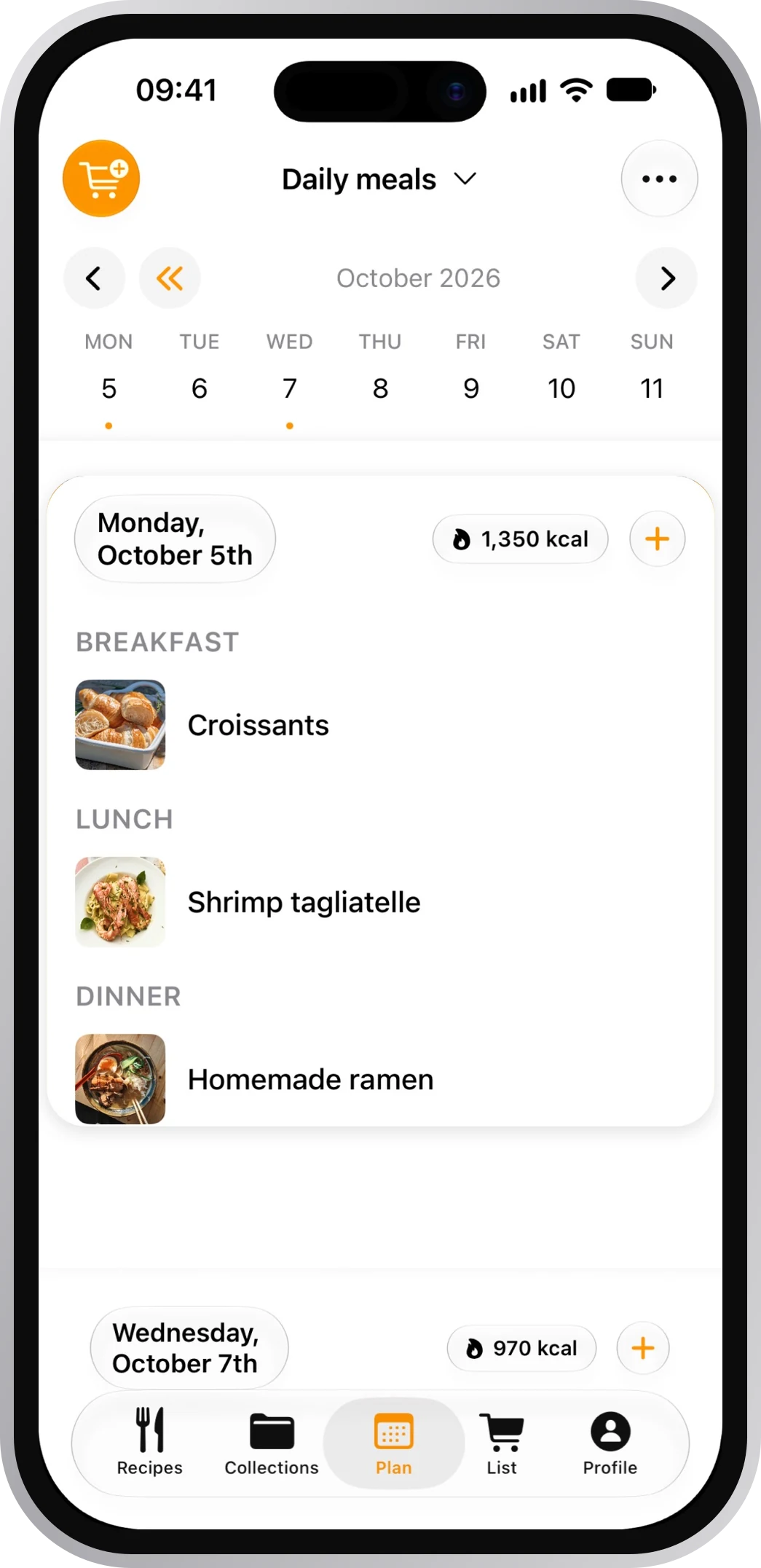
 Rigatoni with meat ragùMon
 Zucchini frittersTue
 Grilled bread with burrataWed
 Crispy rolls with dipThuAvocado and egg toast10 minWhipped feta with olives15 minBlueberry pancakes20 min
Which ones are quick, which have chicken, which you cooked last.
You already have oil and salt in your pantry.
It adds what a recipe needs. Your pantry stays out.

It uses the recipes you already have in CookNest, and you see it done in the app right away.
Pick your assistant and sign in with your CookNest account.
Official plugin. Whether you see it depends on your plan, country or workspace.
Open CookNest in ChatGPT and click Install plugin.
With Google, Apple or email, using the same account as in the app. Then you're back in ChatGPT.
In a new chat, try: "What recipes do I have with chicken?"
If something goes wrong
Search for it under Plugins on chatgpt.com, or in Settings › Plugins in the phone app. Depending on your plan, country or workspace, it may not show up for you yet. On Business, Enterprise or Edu, your admin has to allow it.
That's expected: ChatGPT asks before any change to your data, like saving a recipe or adding to your shopping list. You can approve it for the rest of the conversation.
Official directory connector. Connect it on claude.ai or the desktop app and it's on your phone and in Claude Code too.
Open CookNest in Claude and click Connect to Claude.
With Google, Apple or email, using the same account as in the app. Then you're back in Claude.
In a new chat, try: "Plan this week's dinners with my recipes."
If something goes wrong
Search for it in Customize › Connectors › Discover. On Team or Enterprise, an organization owner has to add it first; until then you'll see Request. If it still doesn't show up, add it by hand: Customize › Connectors, + and Add custom connector, with this address:
https://mcp.cooknest.app/mcp
Paste it into the assistant, not your browser.
Click + in the message box, open Connectors and turn it on.
Change it in Customize › Connectors › CookNest, under Tool permissions: choose Always allow, Needs approval or Blocked for each action.
CookNest works with any assistant that supports MCP connectors, like Cursor or Codex. Add it as a custom connector with this address:
https://mcp.cooknest.app/mcp
Paste it into the assistant, not your browser.
ChatGPT and Claude, on the web, desktop, mobile and in Claude Code. And any assistant that supports MCP connectors with sign-in, like Cursor or Codex.
In ChatGPT, whether the plugin shows up depends on your plan, country or workspace. In Claude, if the directory connector doesn't show up, you can add it as a custom connector on the Free, Pro, Max, Team and Enterprise plans; Free allows only one.
No, it works with any account. Imports you ask for count towards the same weekly quota as in the app.
The recipes, collections, plans, lists and pantry of your account, and only when it needs them for what you asked. It doesn't see your subscription or anyone else's account.
Only if you ask, just like you can in the app. Before deleting, your assistant can ask you to confirm.
In ChatGPT, uninstall the CookNest plugin. In Claude, go to Customize › Connectors, open CookNest and click Disconnect. The phone app stays signed in. If you change your password, every connection is cut.
Model Context Protocol, the open standard AI assistants use to connect to other apps. That's why CookNest works with any compatible assistant.

Try it for free. We can't wait to cook with you.
Over 150,000 home cooks already use CookNest